Rest
RestaurantsCafésBarsHotelsPizzerias

Kitchen Display System (KDS): orders straight to the cook

Orders reach the kitchen screen instantly: notes, allergens and a timer. Status changes with one tap.

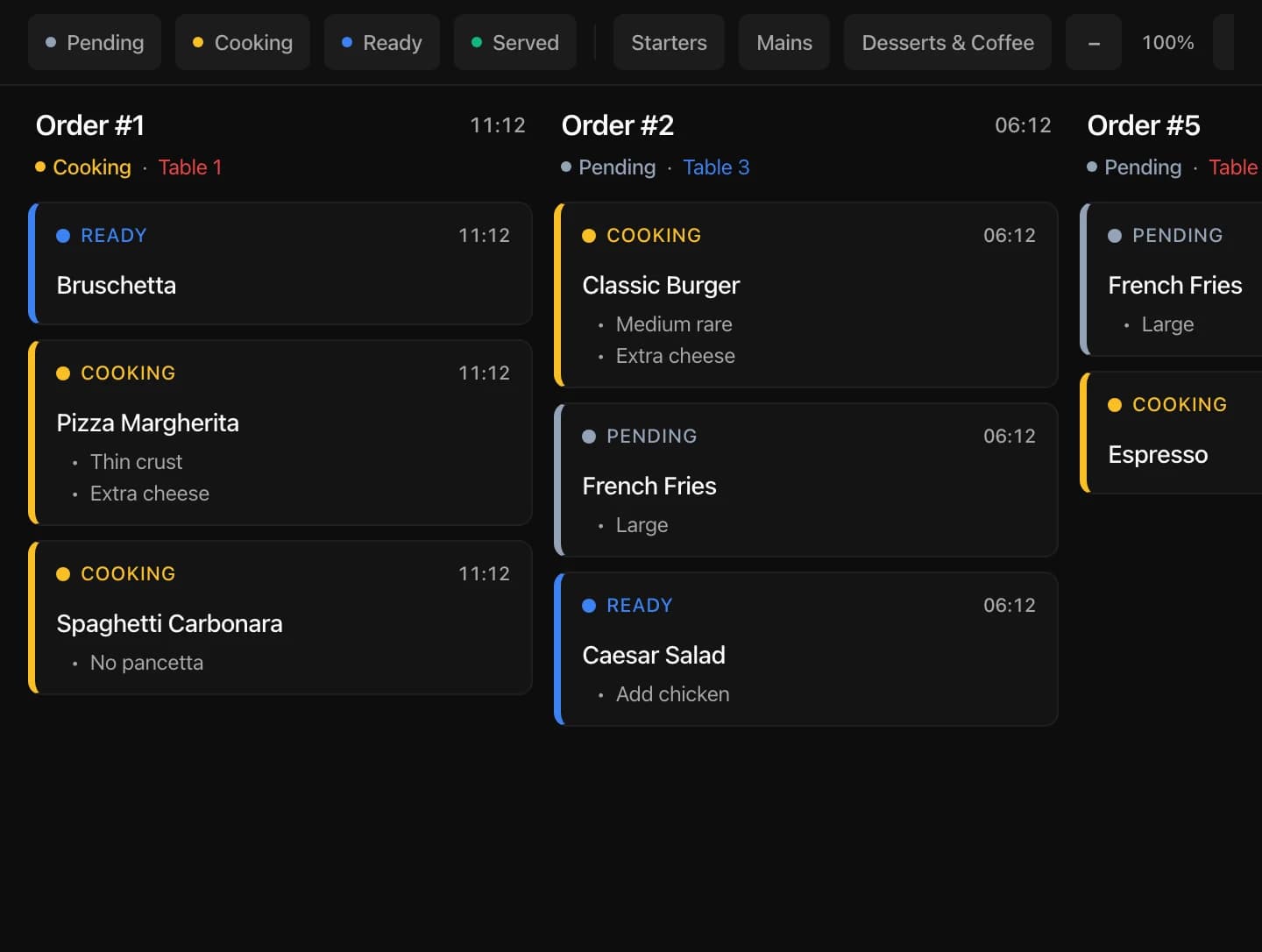
Tablet with a kitchen display: orders by table in columns with statuses

Screens by station

Separate tablets for the hot line, bar and pastry station — each screen shows only its own dishes.

  • Category filter

    Assign each screen its own menu categories

  • A flow per station

    Kitchen and bar work in parallel without getting in each other's way

  • Status filter

    Show only what's cooking or ready for pickup

One-tap statuses

A tap on a card moves the dish to the next status. The kitchen and the waiter see the same picture.

  • A status per item

    Cooking, ready, served — per dish, not per order

  • A timer from the moment of order

    See how long a dish has been waiting — the longest-waiting rise to the top

  • Allergens and comments

    Options, guest notes and allergens highlighted in color

Orders land instantly

A guest's order from the QR menu or from a waiter appears on the screen the moment it's placed, with no page refresh.

  • On screen instantly

    A persistent connection — the card appears the second the order is placed

  • All sources in one stream

    Guest and waiter orders arrive on one screen with the table number

  • Table number on the card

    The kitchen sees where the dish goes; the waiter sees where it's expected

Connected in minutes

The kitchen screen runs in the browser on any tablet or phone — connected with a six-digit code.

  • Tablet or phone

    A browser is enough — no special hardware to buy

  • Pairing code

    Enter the six-digit code from the dashboard — the device is linked to the kitchen

  • Access revocation

    Tablet lost or replaced — disconnect it from the dashboard with one tap

Set up the kitchen display in 5 minutes.

Scan a paper menu or a PDF — AI recognizes dishes, categories and allergens. Connect a tablet in the kitchen and start receiving orders.

Frequently asked questions

What restaurateurs ask about the kitchen display in IQ Rest. If your question isn't listed — message us on WhatsApp.

Message us on WhatsApp

What statuses do kitchen items have?

Four statuses: Pending — the order is placed and waiting; Cooking — the dish is being prepared; Ready — ready for pickup; Served — delivered to the guest. Tapping the card advances to the next status, with no menus or confirmations.

Can I set up several KDS screens in different kitchen stations?

Yes. One tablet on the hot line, another at the bar, a third at the pastry station — each with its own dish-category filter. All screens stay in sync: a status changed on one updates on the rest.

What do I run the KDS on — do I need a special tablet?

The KDS runs in any modern browser. A tablet on a stand at the pass suits a large kitchen; a smartphone works for a small venue. No special hardware or installation required: the device connects with a six-digit code from the dashboard.

Where do orders on the kitchen screen come from?

From every source: a guest placing an order through the table QR menu, or a waiter taking it on their own device. Orders reach the KDS automatically, with the table number. No manual re-entry from a POS.

What does an order card show?

The dish name, selected options (no onions, well done), the guest's comment, allergens, the status and a timer running since the order was placed. Cards sort by priority: the longer a dish waits, the higher it sits in the column.

Can cards on the screen be filtered?

Yes. Two filters: by status (for example, only Pending and Cooking) and by category (drinks to the bar, hot dishes to the kitchen). Settings are saved per device, so each station works with its own set.

A paperless kitchen in 10 minutes. 14 days of full access.

No card needed, cancel anytime. Trusted by 500+ restaurants. All you need is an email — and orders land straight on the kitchen screen.